
How to Identify Your Surface Model & Battery
Finding the perfect battery replacement for your Surface doesn't require a degree in engineering—or a screwdriver. You don't need to open your device just to check its specs. In fact, we recommend identifying your model through system software or external markings for the most accurate match.
Here's the safest and most accurate way to find your "Model DNA" in seconds and ensure you're getting the exact power cell for your device.
Method 1: Check Windows System Information (Recommended)
This is the most foolproof method. Your Surface will tell you exactly what it is.
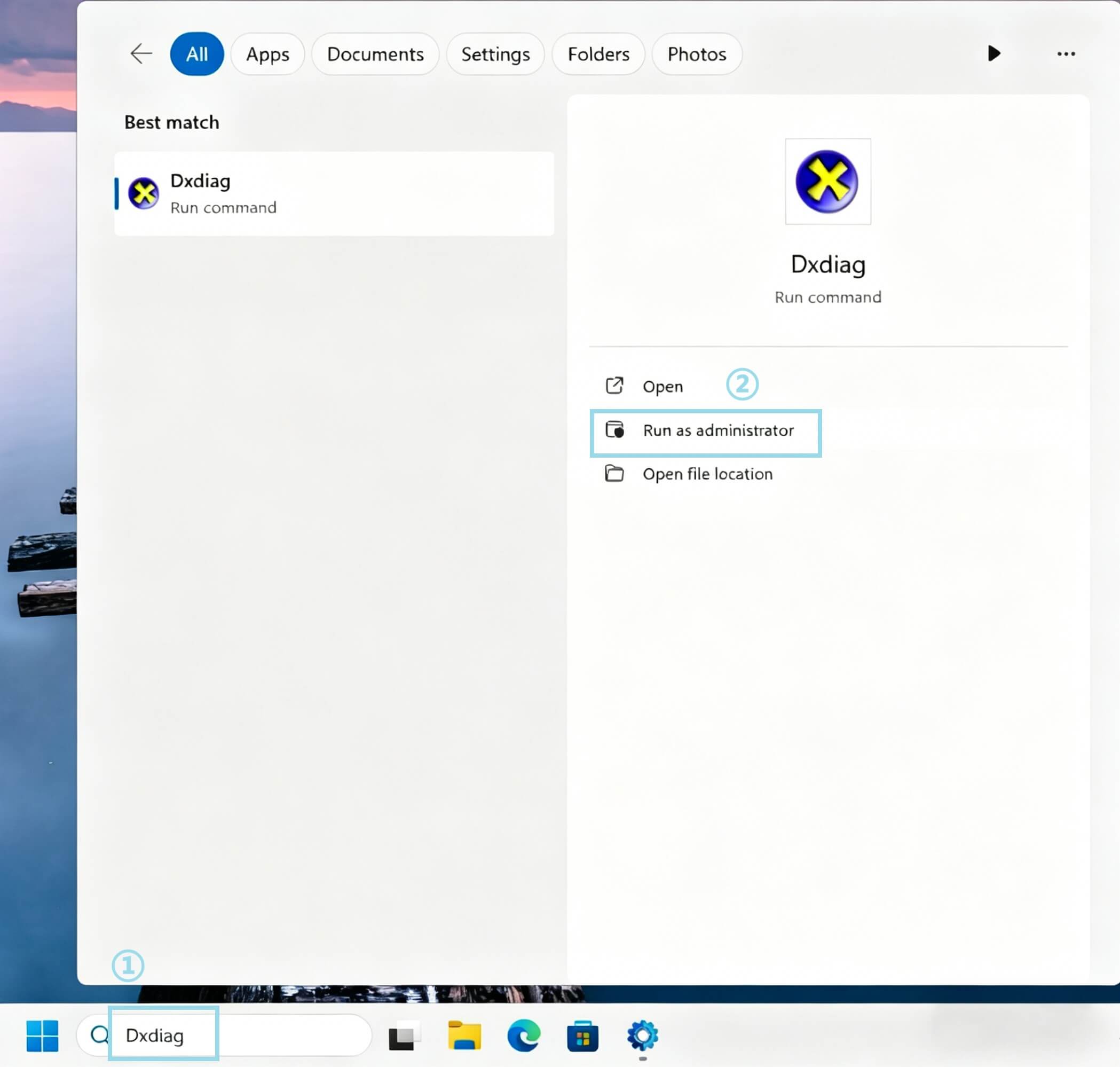
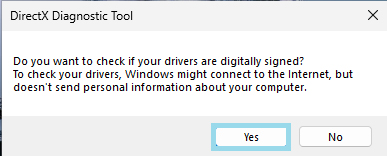
- Open the Start Menu and type "dxdiag" (this opens the DirectX Diagnostic Tool).
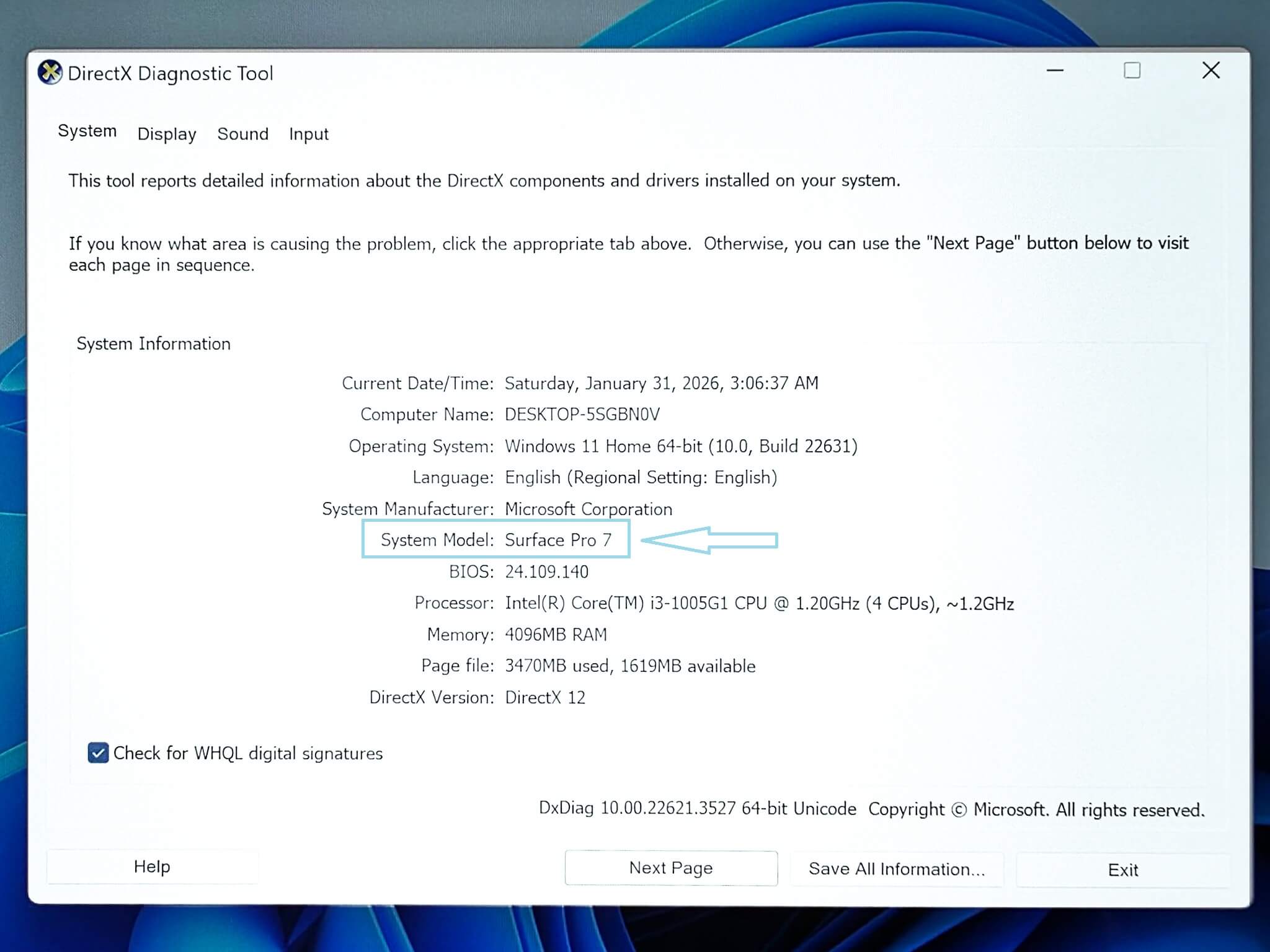
- Look for System Model on the System tab. You'll see something like "Surface Pro 7" or "Surface Laptop 3".
Method 2: Check the Laser-Etched Code
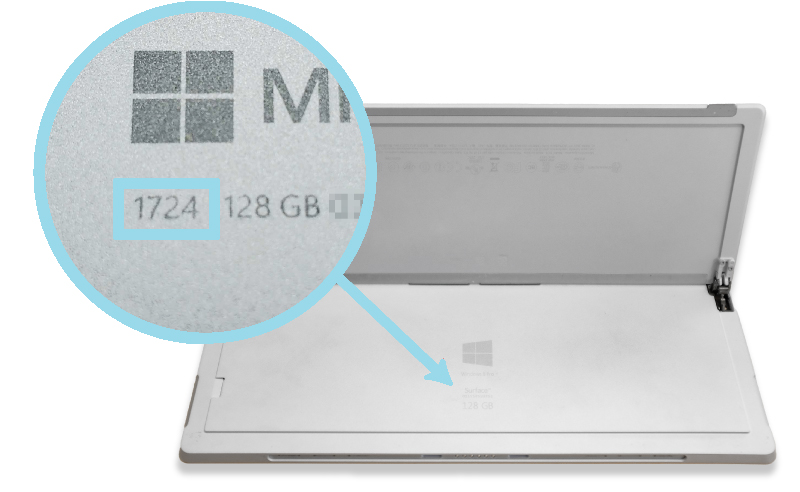
Microsoft includes a 4-digit model number on almost every Surface device. It's tiny, but it's there.
Flip over your device.
- For Surface Pro: Look under the kickstand near the bottom edge.
- For Surface Laptop/Book: Check the bottom-center or the
bottom-right corner.
You're looking for a 4-digit number, e.g., Model 1724. This is your device's core identification code.
Method 3: Cross-Reference by Battery Part Number
Our replacement batteries are engineered to be exact matches for specific Microsoft part numbers. If you already have this code, you're good to go.
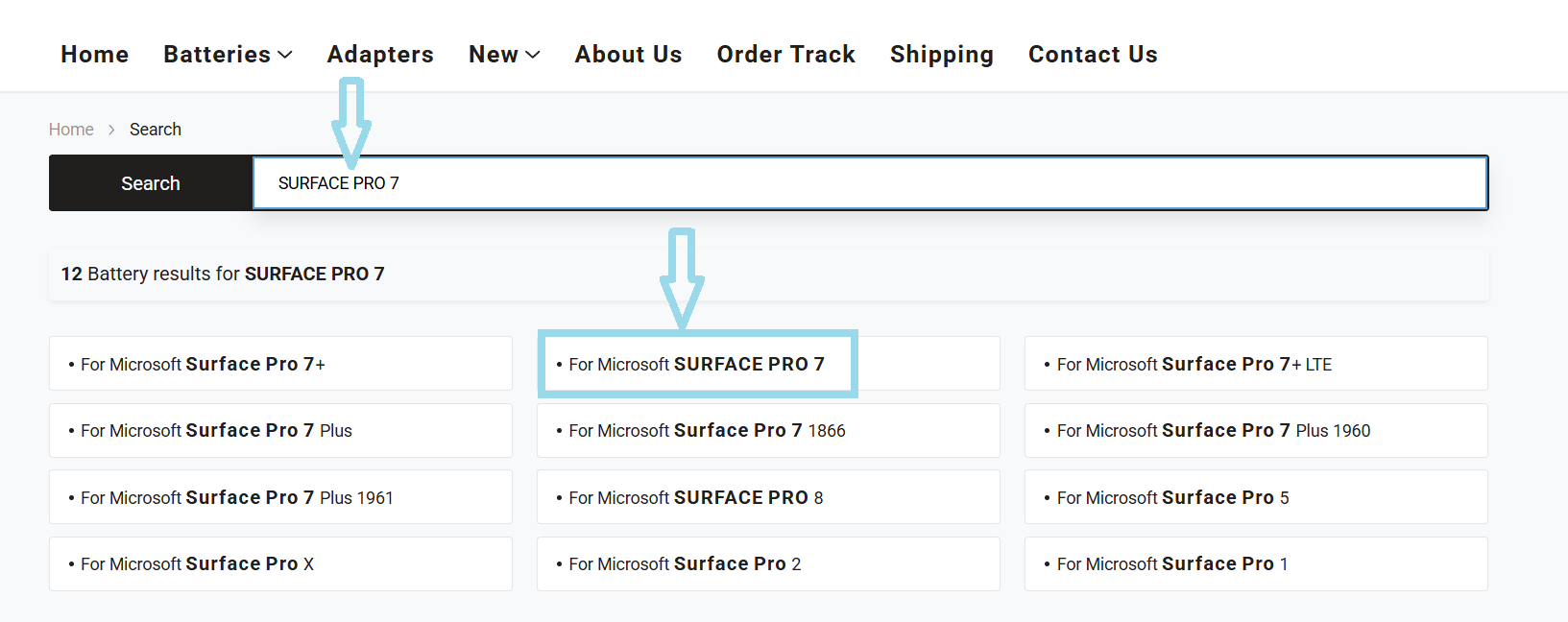
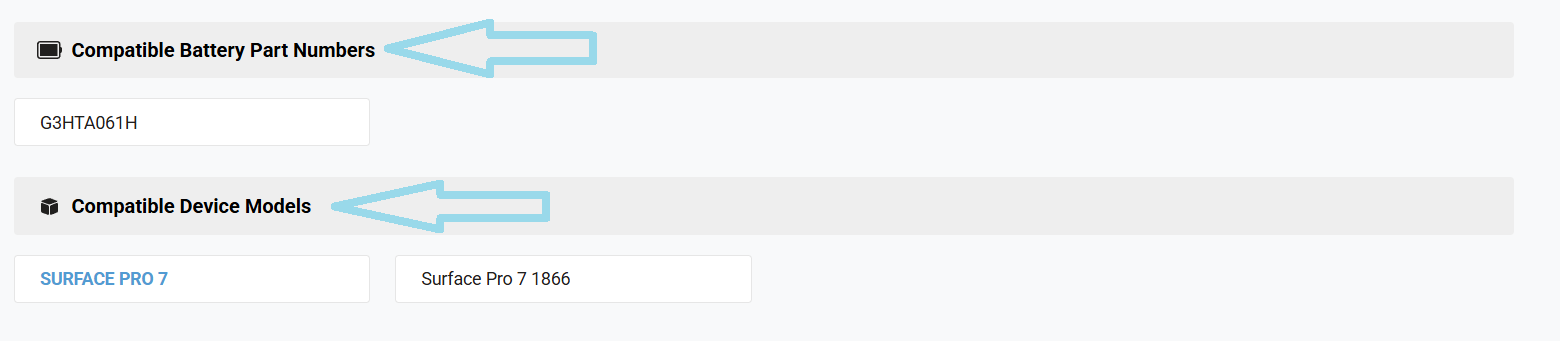
On your product's detail page, we list the fully compatible battery part numbers. Look for codes like:
- G3HTA038H
- Surface Pro 7
- Surface Pro 7 1866
Surface devices are well-designed, but battery replacement can be more complex than it looks. Careful handling and the right tools are important to avoid damaging the screen or internal components.
If you're not confident with the process, it may be worth having a technician assist. Otherwise, taking your time and following a proper guide can make the installation much smoother.